Deploy ASP.NET Core to Hetzner
No free tier — the cheapest real box of the ten, from about €4/month.
Hetzner has no trial and no free credit, but it’s the cheapest real compute you can buy — around €4/month for a shared-vCPU Cloud Server — which is why it’s the provider DotDeployer leads with. Strongest in Europe, with a US and Singapore region too.
1. What you need
- A Hetzner Cloud account.
- An API token with read/write access, scoped to a single project.
- A DotDeployer account.
2. Create the account and the API credential
- Sign up at accounts.hetzner.com/signUp with your email and a password, verify your email, and add a payment method (card or PayPal). New accounts are sometimes held for a quick ID check — start this step early if you’re on a deadline.
- Open the Hetzner Cloud console, create a new project, then go to Security → API tokens → Generate API token. Give it a description and set the permission to Read & Write.
- Copy the token — it’s shown once.

3. Connect it in DotDeployer
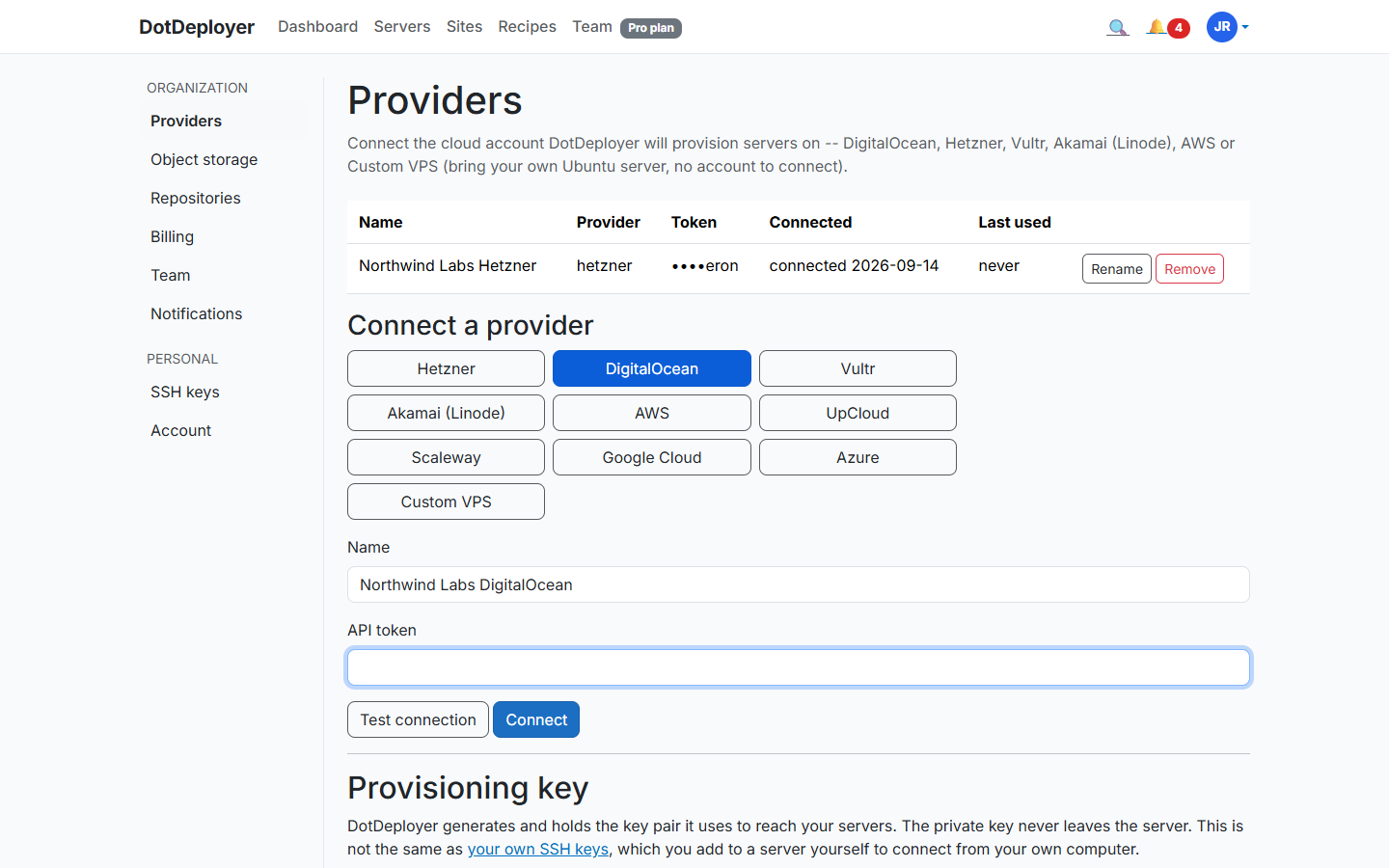
- In DotDeployer, go to Settings → Providers → Connect a provider → Hetzner.
- Enter a name and paste in the token.
- Click Test connection, then Connect. The token is encrypted at rest, and revoking it in Hetzner’s console stops DotDeployer immediately.
4. Create the server
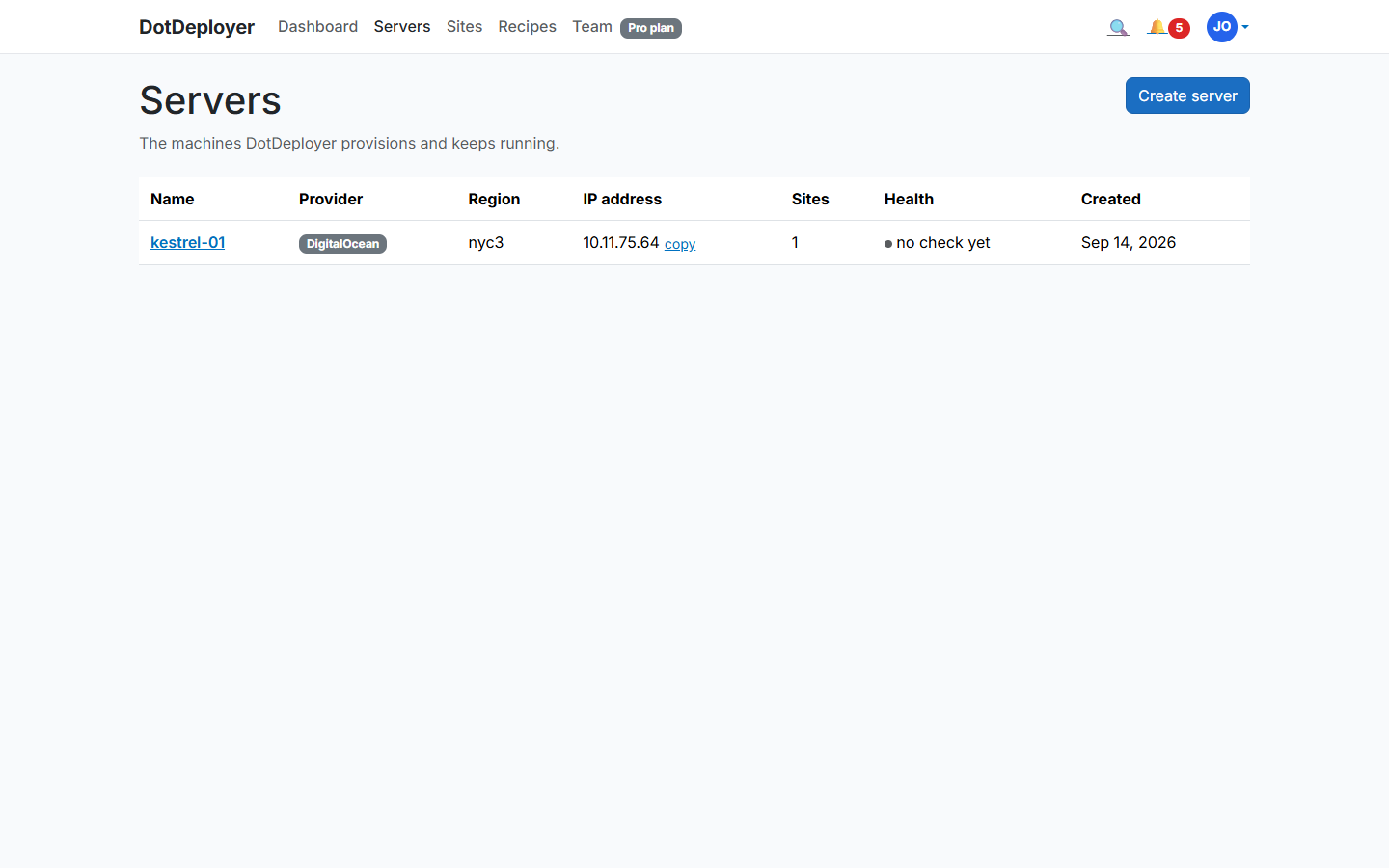
- From Servers → Create server, pick Hetzner, choose a region — Germany, Finland, the US
(Ashburn, Hillsboro) or Singapore — and a size. A
CX22(2 vCPU / 4 GB) is a comfortable default for a small ASP.NET Core app. - DotDeployer provisions the Cloud Server and bootstraps it: firewall, unattended security updates, the ASP.NET Core runtime, nginx. It shows Active once ready.
5. Add a site and deploy from GitHub
- Click Add site on the server and connect the GitHub repository you want to deploy.
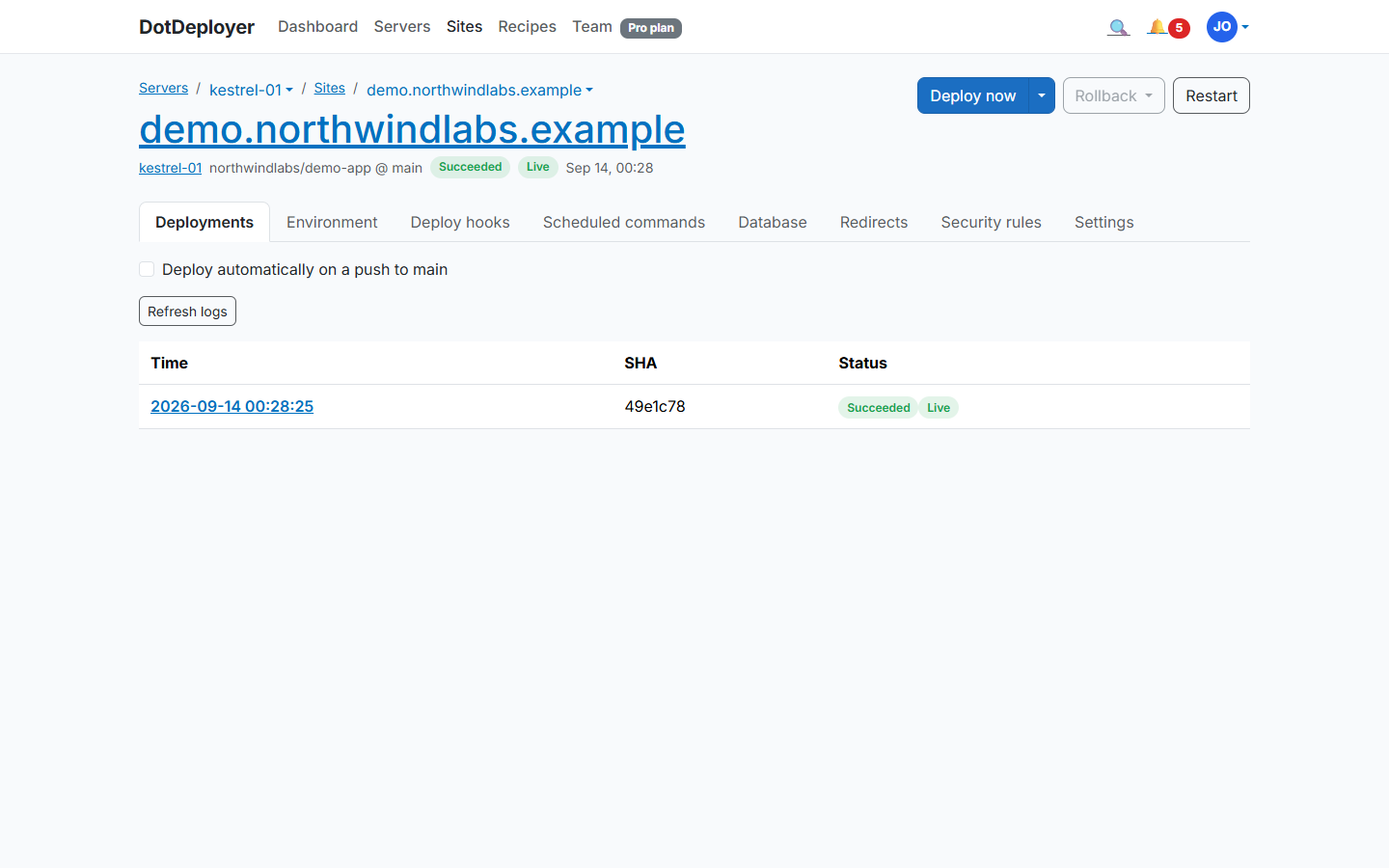
- DotDeployer publishes your app, sets it up behind nginx as a systemd service, and streams the deployment log as it runs.
- Every later push to that branch deploys automatically, with the last five releases kept on disk for an instant rollback.
6. Database and environment variables
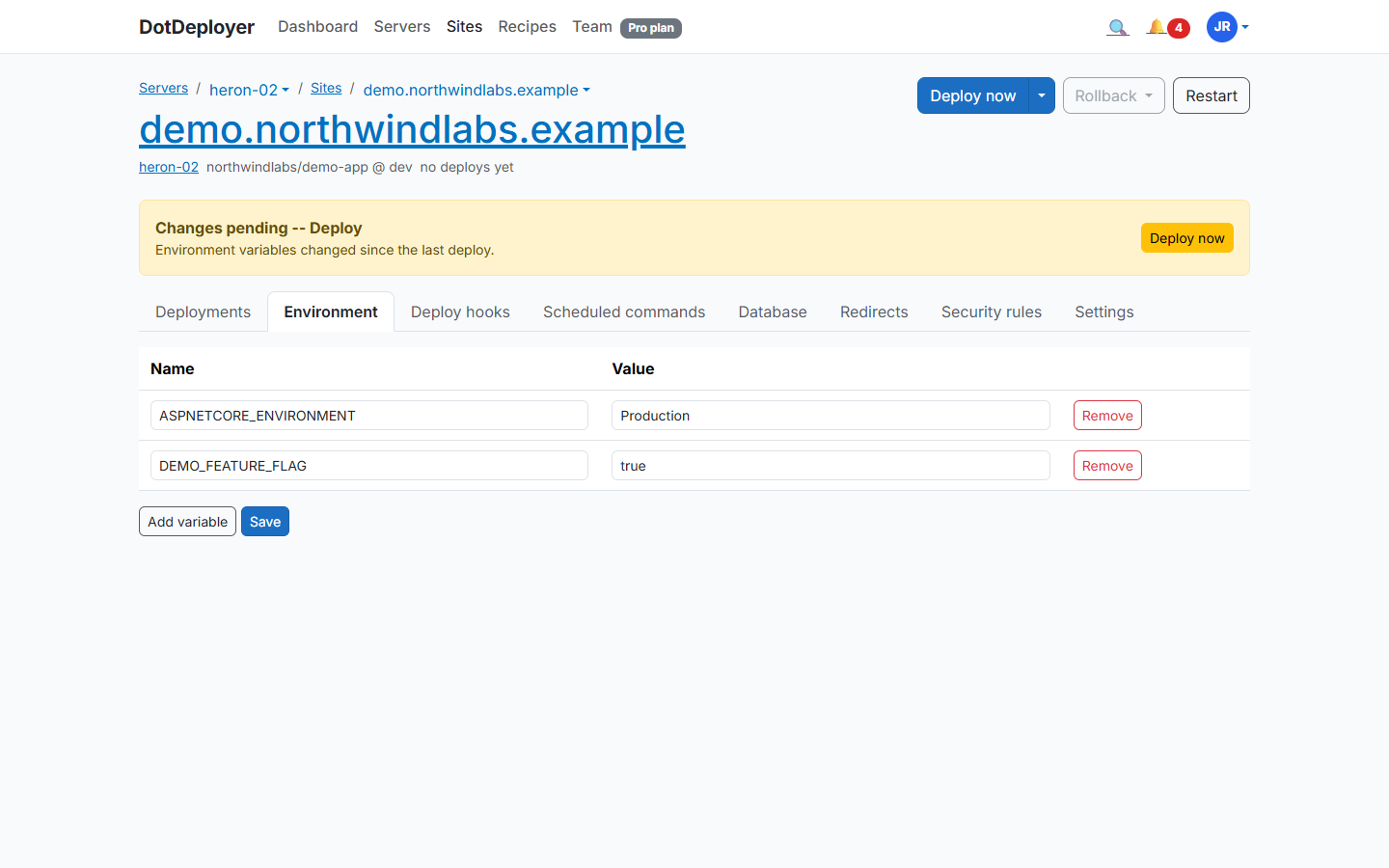
Install PostgreSQL or SQL Server on the same server from the site’s Database tab — the port
stays closed to the internet, you connect from your laptop over an SSH tunnel rather than opening
5432 or 1433 publicly. Set your connection string and other configuration under Environment
variables, encrypted at rest and delivered as a systemd EnvironmentFile, never committed to
your repo.
7. HTTPS
Point an A record at the server’s IP for your domain, then add it under the site’s Settings tab (Domains section). DotDeployer requests a Let’s Encrypt certificate and renews it automatically.
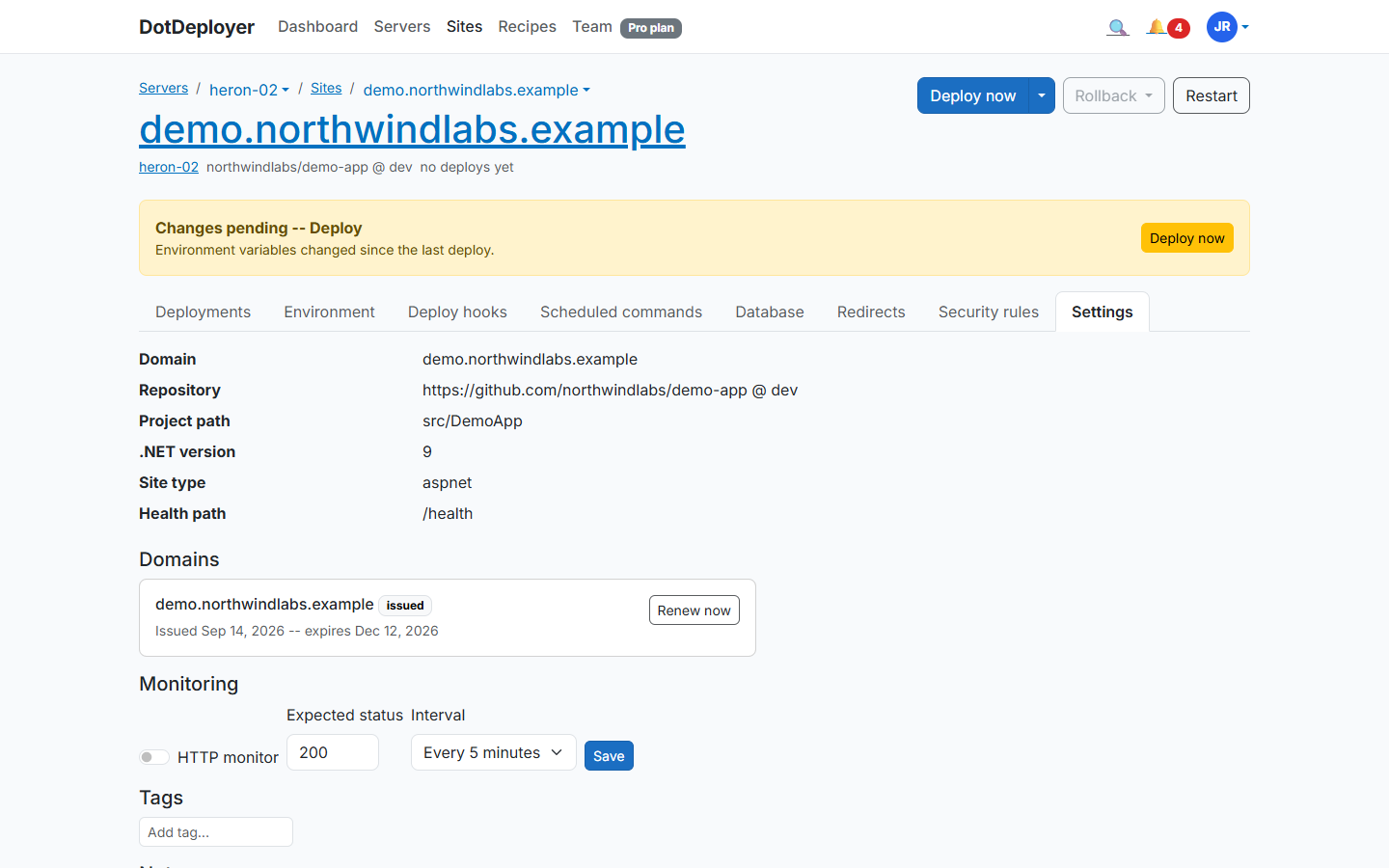
8. What to check
- The site loads over HTTPS with a valid certificate.
- The deployment log shows the latest commit as the live release.
- Hetzner bills by the hour, so if you’re just testing, delete the server from DotDeployer (or Hetzner’s console) when you’re done and confirm it’s gone.
- You can resize the server later from Hetzner’s own console — DotDeployer keeps deploying to it the same way afterward.
See the Hetzner provider page for pricing and regions.
Join the waitlist