Deploy ASP.NET Core to DigitalOcean
$5 credit automatically on signup; a $200 promo may be available via a referral link.
DigitalOcean has the simplest console of any provider here, and the widest choice of US regions. Every new account gets a small automatic credit, and DigitalOcean occasionally runs a larger promotional credit through referral links — either way, a $6/month Droplet costs cents for a short test.
1. What you need
- A DigitalOcean account.
- A Personal Access Token with read/write scope.
- A DotDeployer account.
2. Create the account and the API credential
- Sign up at digitalocean.com — with GitHub or an email address — and add a card or PayPal. Check Billing afterward: you’ll see a small automatic credit, or a larger one if you signed up through a promo link.
- Go to cloud.digitalocean.com/account/api/tokens
and click Generate New Token. Give it a name and an expiration, then scope it to the
droplet(create/read/update/delete),ssh_key(create/read/delete),regions,sizesandimage(read) permissions — nothing else. - Copy the token — DigitalOcean only shows it once.
3. Connect it in DotDeployer
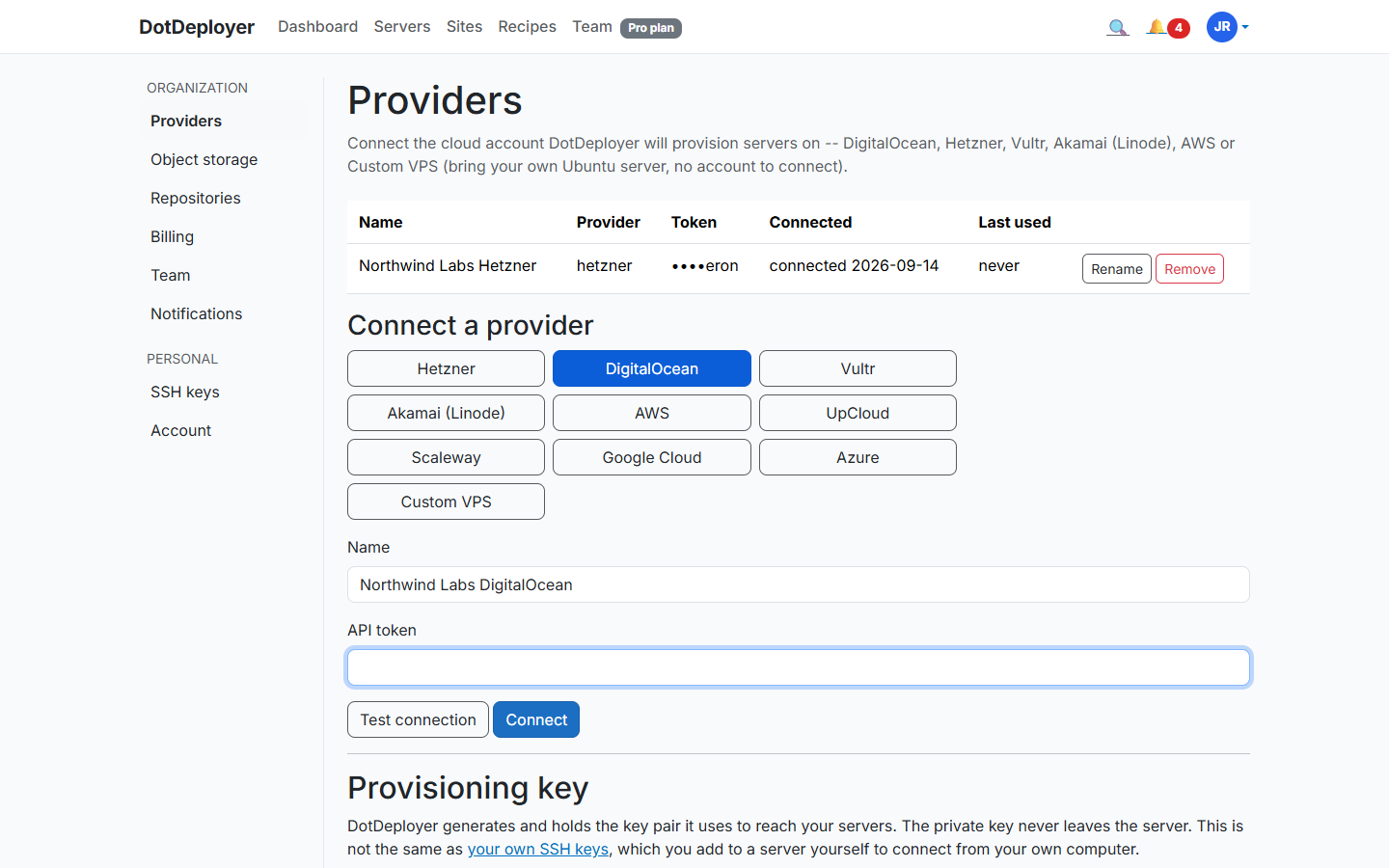
- In DotDeployer, go to Settings → Providers → Connect a provider → DigitalOcean.
- Enter a name and paste in the token.
- Click Test connection, then Connect. The token is encrypted at rest, and DotDeployer only ever calls the Droplet-management endpoints it needs.
4. Create the server
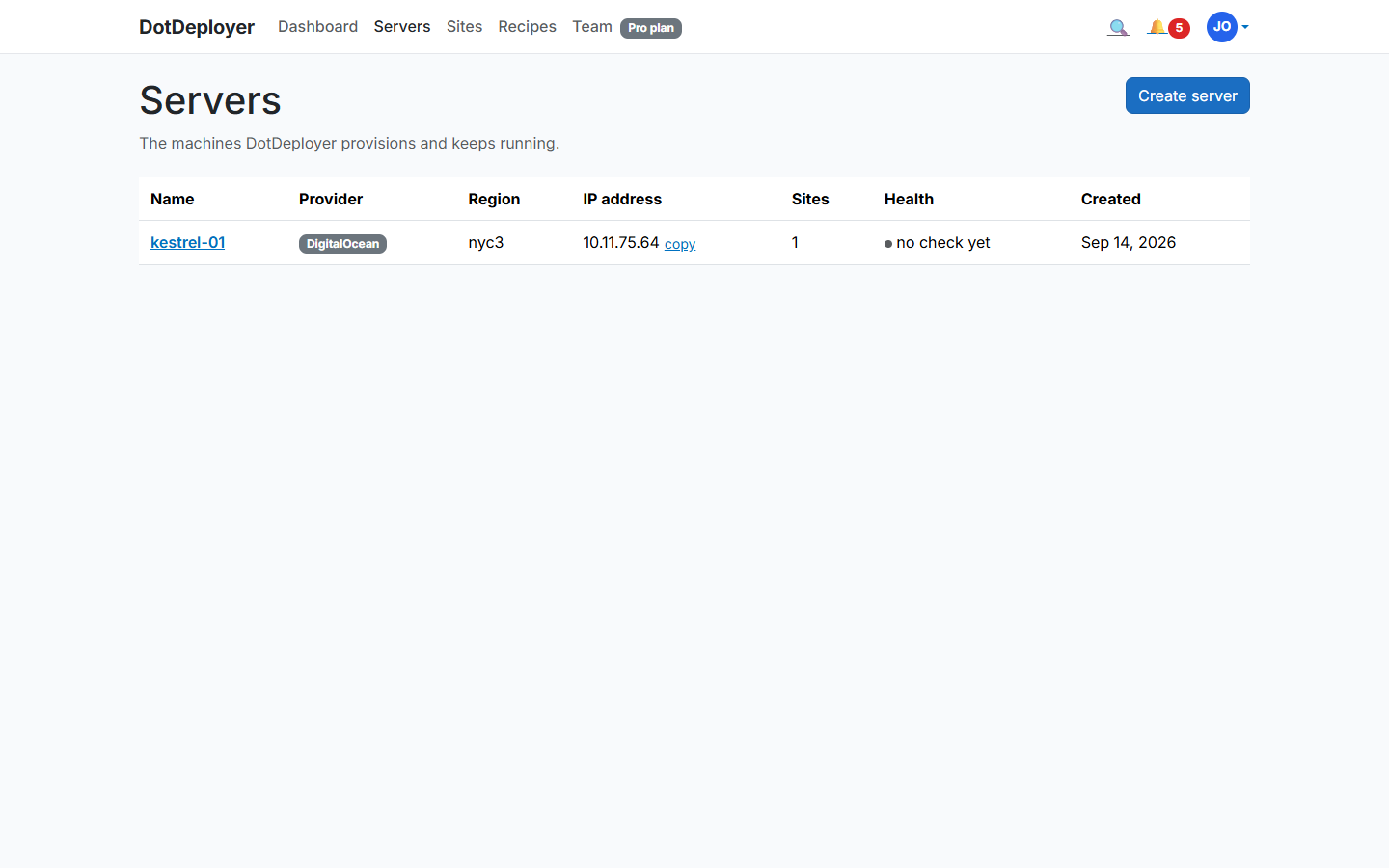
- From Servers → Create server, pick DigitalOcean, choose a region from its worldwide list (New York, Amsterdam, Singapore and more), and a size — 1 GB is enough for a small ASP.NET Core app.
- DotDeployer provisions the Droplet and bootstraps it: firewall, unattended security updates, the ASP.NET Core runtime, nginx. It shows Active once ready.
5. Add a site and deploy from GitHub
- Click Add site on the server and connect the GitHub repository you want to deploy.
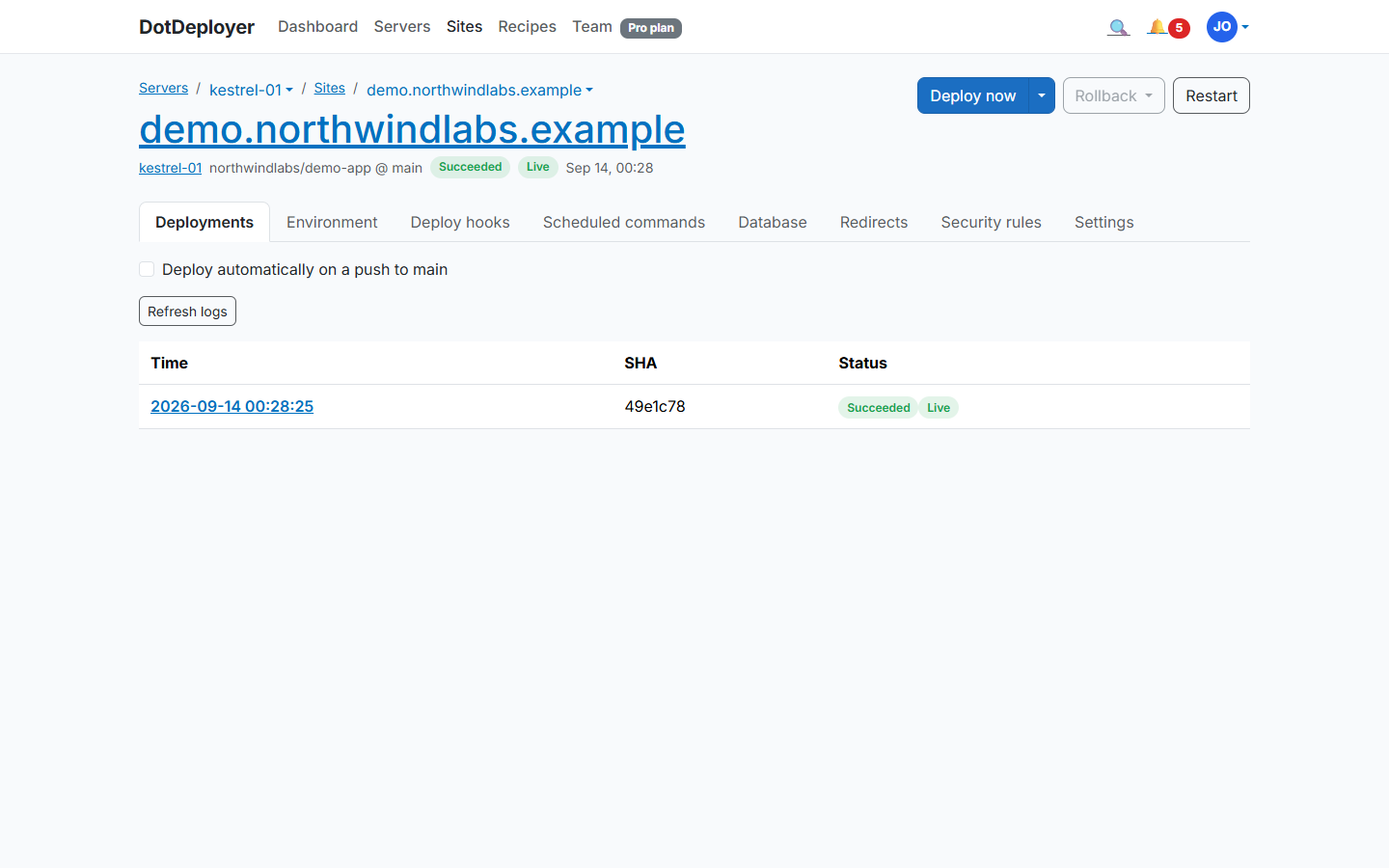
- DotDeployer publishes your app, puts it behind nginx as a systemd service, and streams the deployment log as it runs.
- Future pushes to that branch deploy automatically, with the last five releases kept on disk for an instant rollback.
6. Database and environment variables
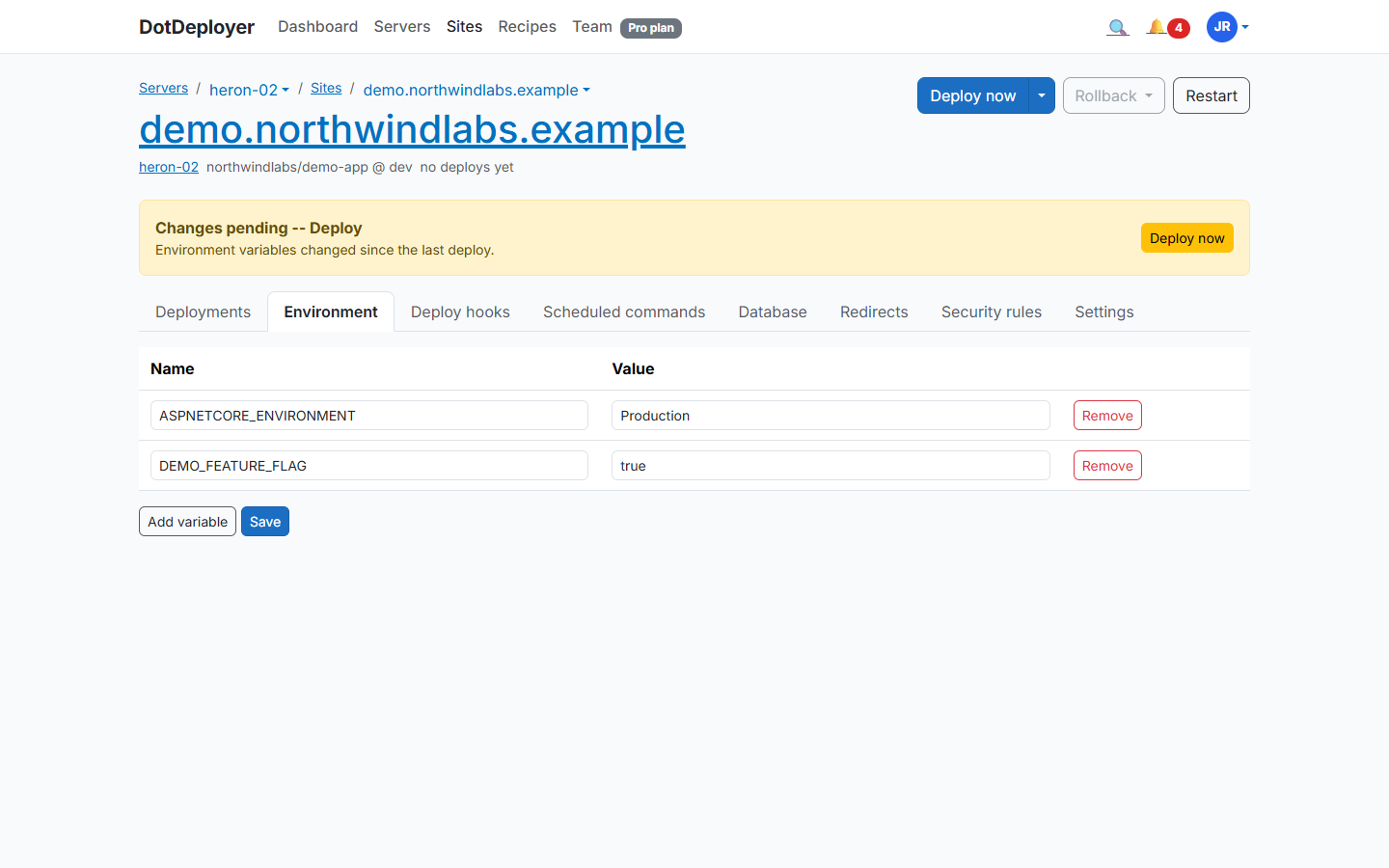
Install PostgreSQL or SQL Server on the same Droplet from the site’s Database tab — the port
is never opened to the internet, you reach it from your laptop over an SSH tunnel. Set your
connection string and other configuration under Environment variables, encrypted at rest and
delivered as a systemd EnvironmentFile, never committed to your repo.
7. HTTPS
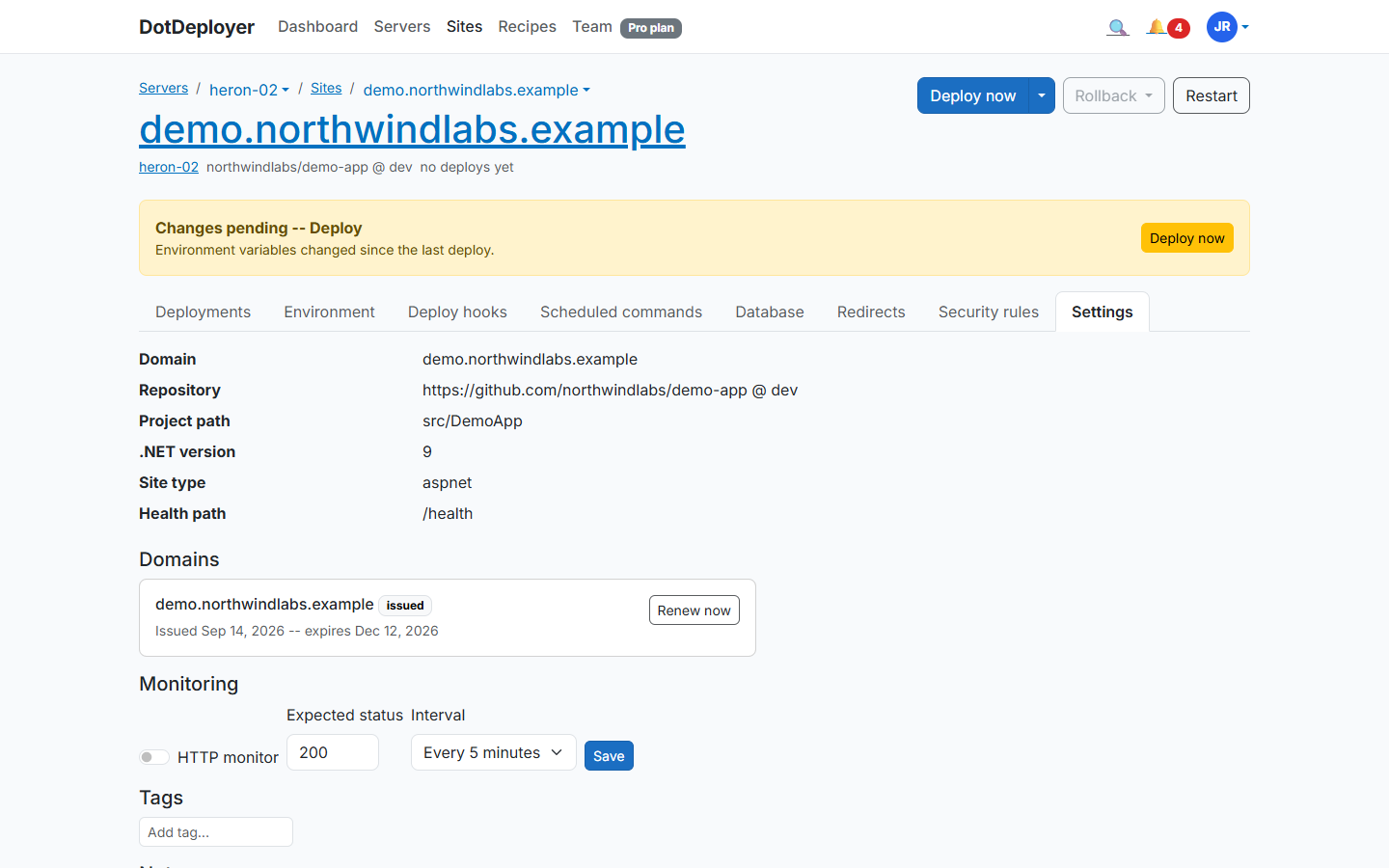
Point an A record at the Droplet’s IP for your domain, then add it under the site’s Settings tab (Domains section). DotDeployer requests a Let’s Encrypt certificate and renews it automatically.
8. What to check
- The site loads over HTTPS with a valid certificate.
- The deployment log shows the latest commit as the live release.
- DigitalOcean’s own Billing page shows usage against your credit.
- If you’re only testing, destroy the Droplet the same day from DotDeployer or DigitalOcean’s console — a $6/mo Droplet run for a few hours costs a fraction of a cent.
See the DigitalOcean provider page for pricing and regions.
Join the waitlist